QAEverest — Frequently Asked Questions
What is the purpose of QAEverest?
The purpose of QAEverest is to automate and streamline the creation of test cases for software applications. Here's a breakdown of its key functionalities:
- Web Application: Accessible through a web browser for user convenience.
- User Registration: Ensures authorized access and potentially user management features.
- User Story/Scenario Input: Users provide a description of the application's functionality using user stories or scenarios.
- Automated Test Case Generation: QAEverest analyzes the user input and generates multiple test cases covering various aspects.
- Test Case Types: It supports a comprehensive range of testing types:
- Functional Testing: Focuses on core functionalities and user interactions within the application.
- System Testing: Validates the entire system as a whole, ensuring seamless integration of all components.
- Performance Testing: Evaluates the system's responsiveness, stability, and scalability under varying workloads.
- Security Testing: Identifies vulnerabilities and weaknesses in the system to protect against unauthorized access and data breaches.
- API Testing: Tests Application Programming Interfaces used for data exchange between different parts of the application or with external systems.
- Subcategories: Each main test case type likely has subcategories for more detailed testing. These subcategories ensure a thorough examination of various aspects within each testing type.
How can I sign up with QAEverest?
The registration process for QAEverest is as follows:
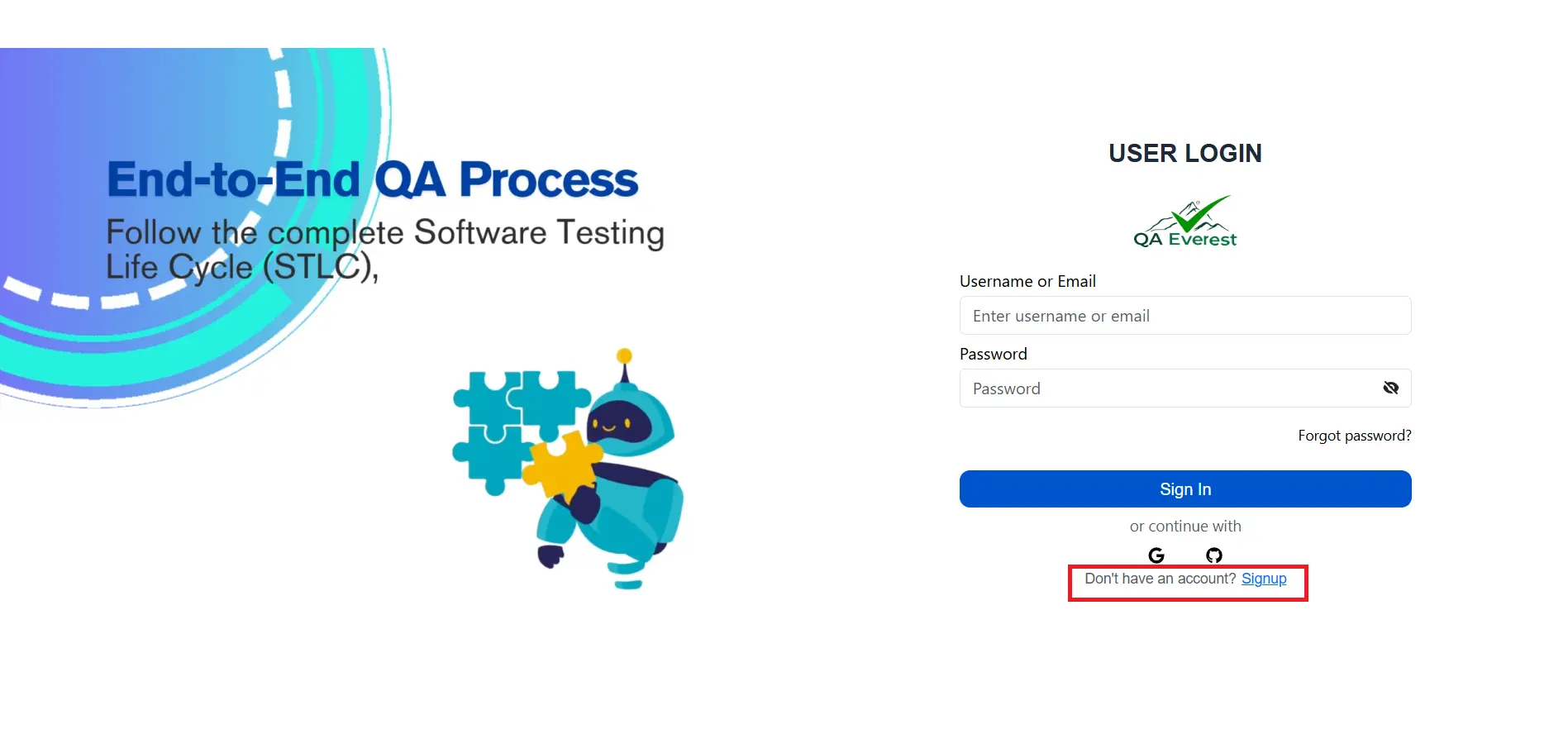
- Visit the QAEverest Website: Navigate to the QAEverest website using your web browser https://qaeverest.ai/.
- Locate the Sign-Up: Look for a button or link labeled "Sign Up," "Register," or something similar.
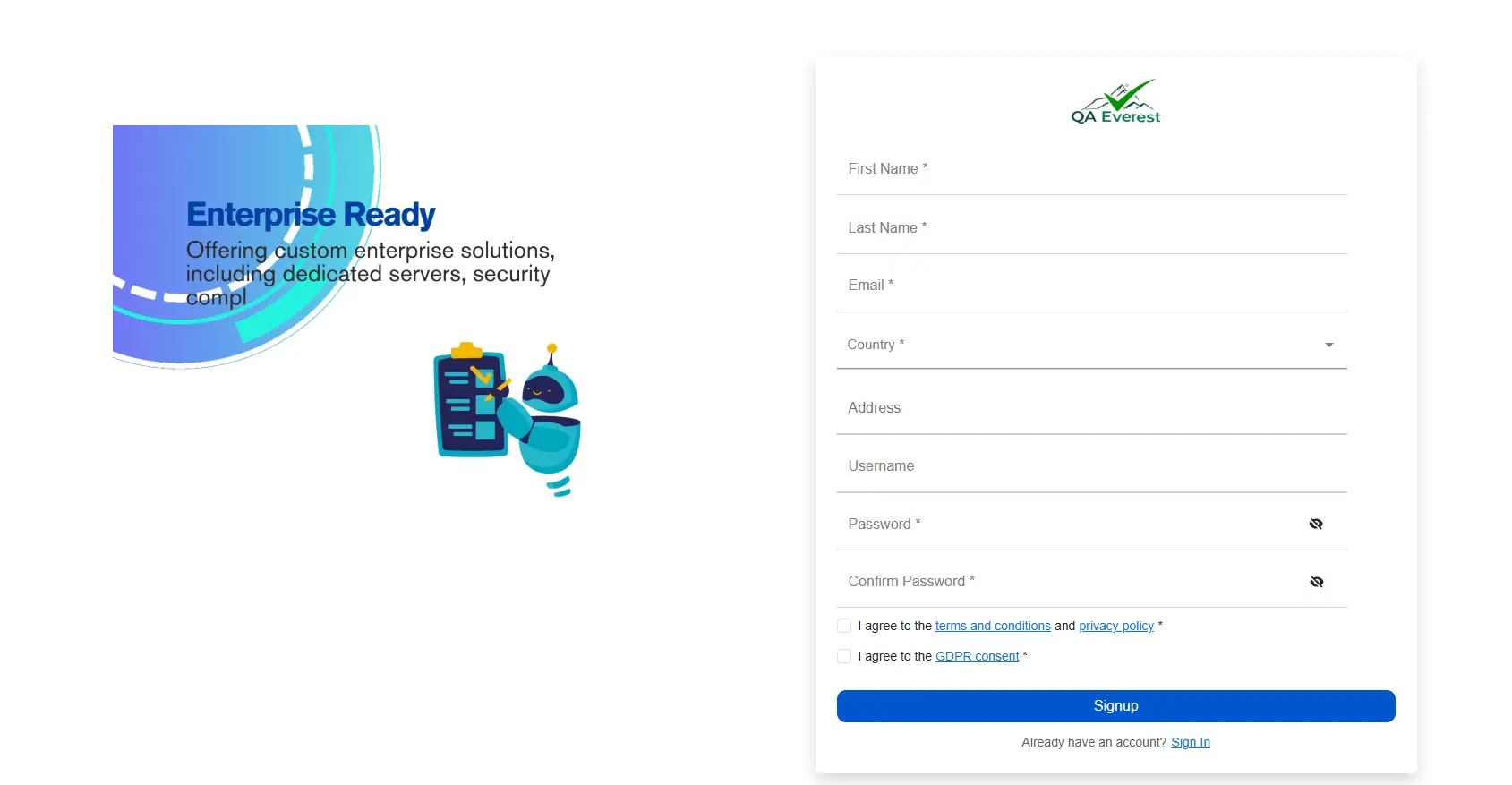
- Fill Out the Registration Form: Complete filling your details in the registration form. Once you've filled out the form with your details, click the "Register" button.
- Verify Your Email Address: QAEverest will likely send a verification email to the address you provided. This email contains a link you need to click to confirm your email address.
- Login to QAEverest: After successful email verification, you can now log in to QAEverest using your email address and the password you created during registration.
How can I sign in to QAEverest?
To sign in to your QAEverest account, follow these steps:
- Enter Your Credentials: In the designated fields, enter the email address and password you used during registration.
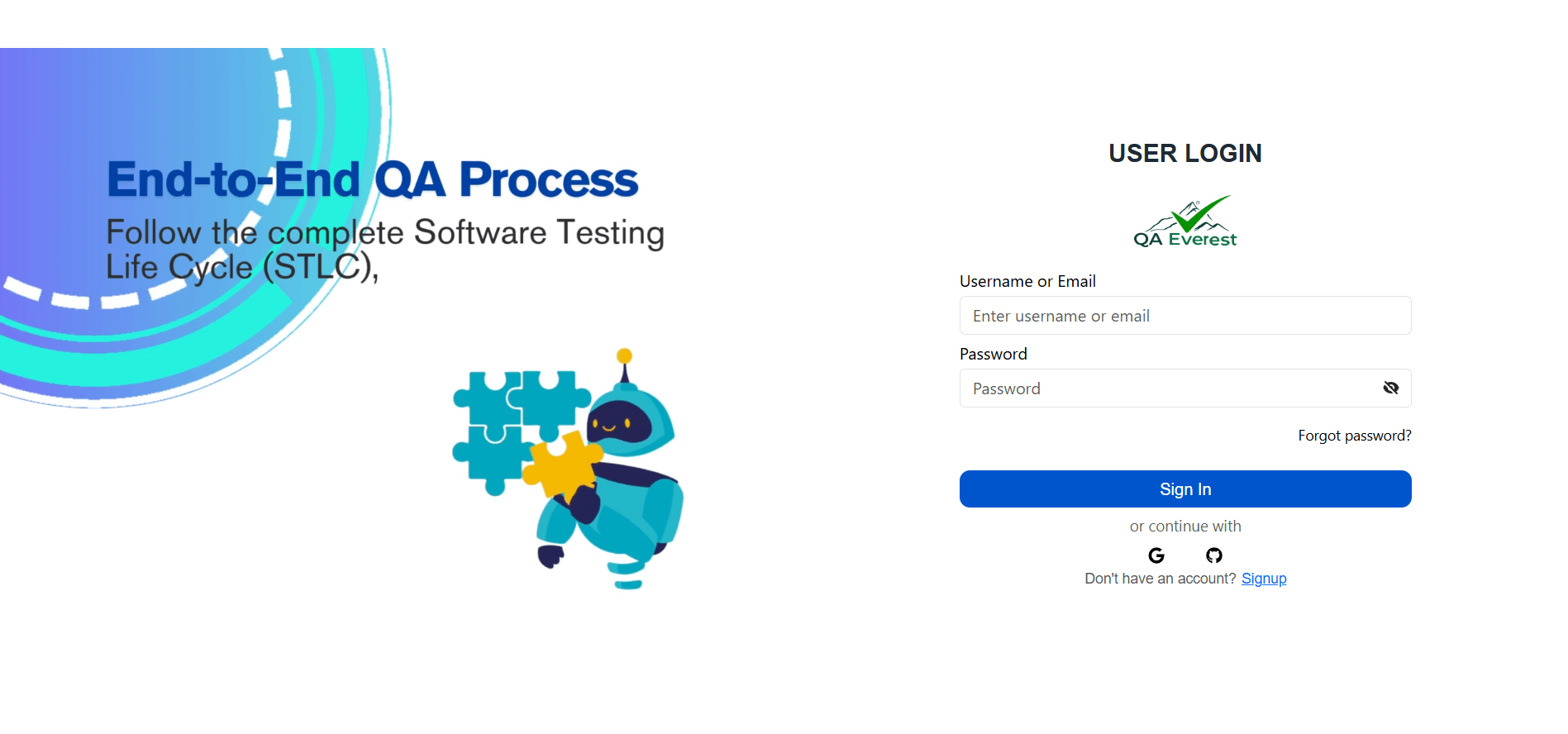
- Click the Sign in Button: Once you've entered your credentials, click the "Sign In" button to initiate the login process.
How can I generate test cases?
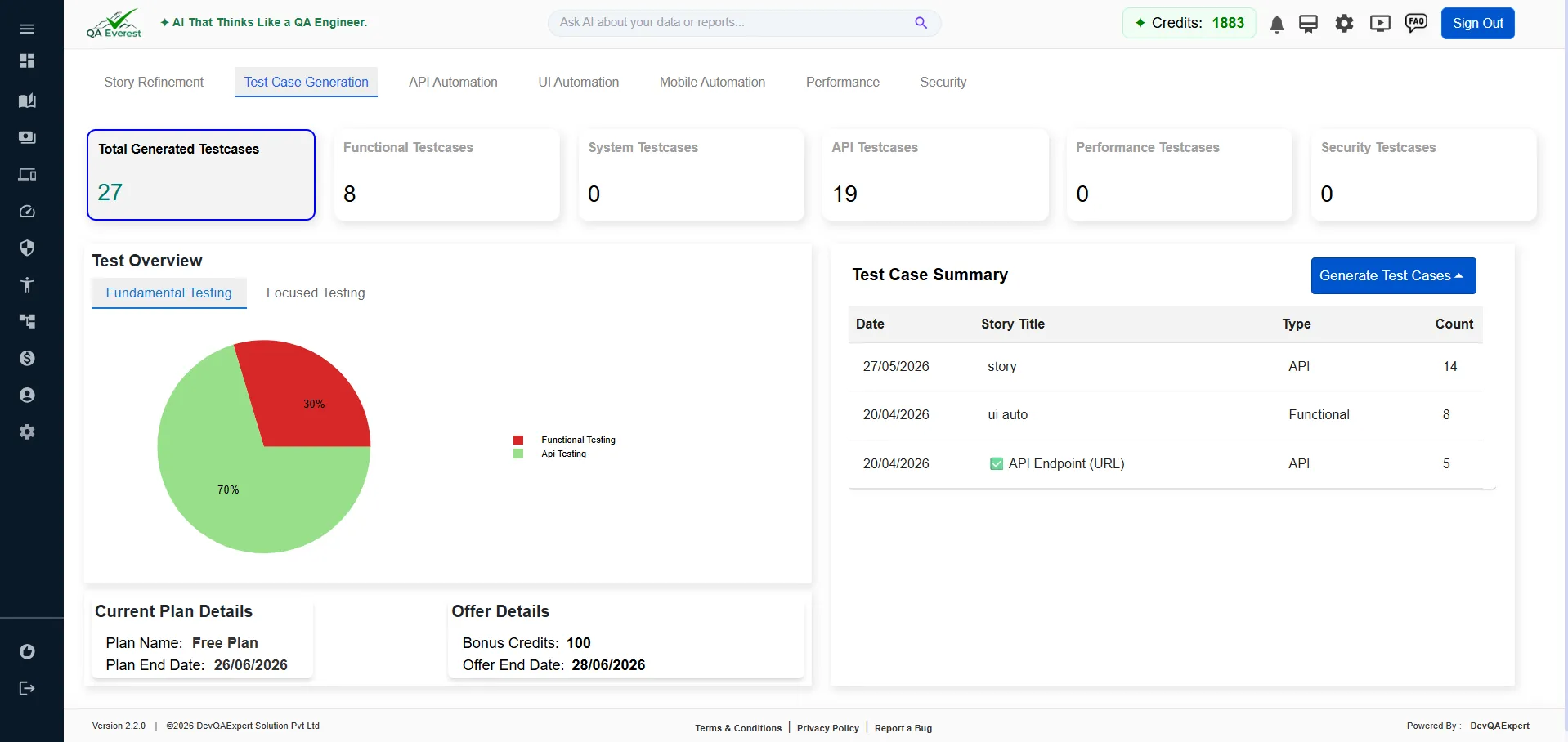
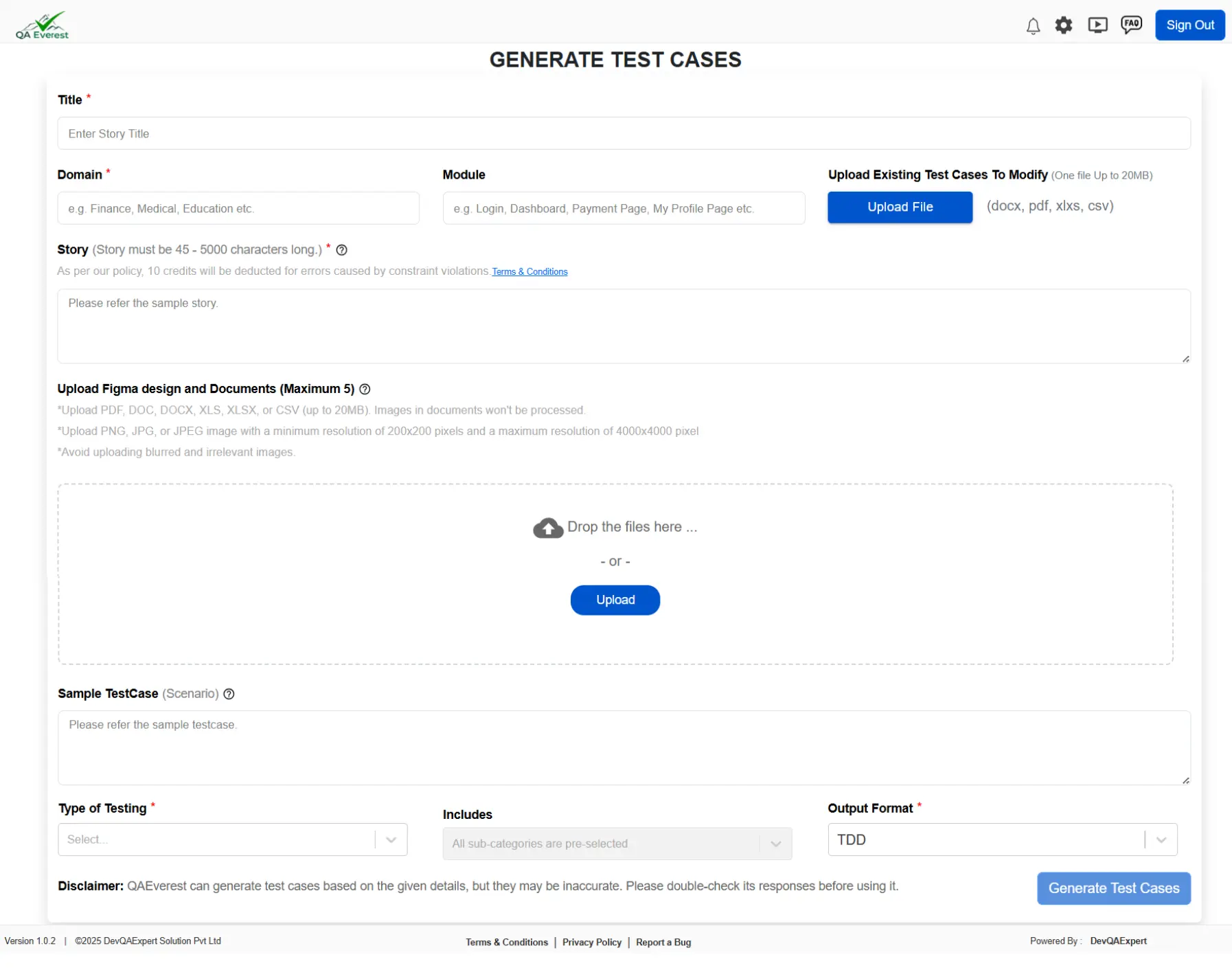
- Title: Enter a clear and concise title for your test suite. This should reflect the functionality or area being tested.
- Domain: Select the relevant domain or area of the application you're testing (e.g., Login, Shopping Cart, Search).
- Module: If applicable, choose the specific module within the domain (e.g., User Management, Product Details).
- Story or Scenario: You might have an option to specify a user story or scenario you're basing the tests on. If available, use this to provide additional context.
- Type of Testing: Select the primary type of testing you want to focus on. The note mentions positive testing is included by default, so you might have options for additional types like:
- Negative testing (testing with invalid inputs)
- Boundary value analysis (testing with extreme values)
- Performance testing (testing speed and stability under load)
- Usability testing (testing ease of use)
- Once you've filled in all the details, click the "Generate TestCase" button.
How can I save my profile?
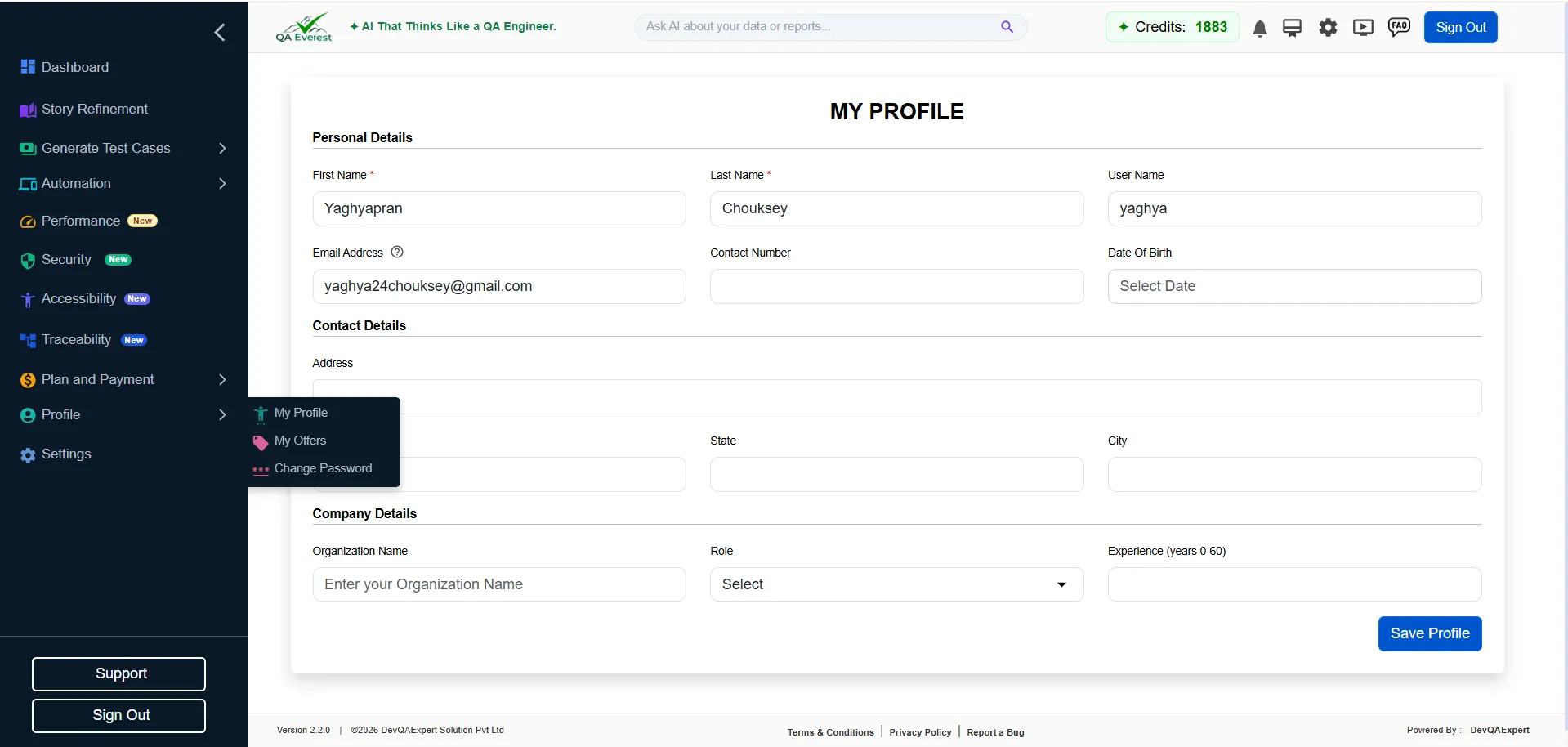
- Go to personal details page under My Profile section
- Update your profile and click on “Save Profile” button
Is there any free plan?
QAEverest offers a free plan with the following deliverables:
- Functional Testing
- Performance Testing
- Security Testing
- System Testing
- API Testing
- 20 Credits
- Validity of 7 Days
What are credits, and how can I use them?
Credits are a unit used to represent the cost of generating test cases.
Here's a breakdown of how they work:
- Value of a Credit: One credit is equivalent to one user story. A user story describes a specific functionality or feature you want to test in your application.
- Using Credits: When you provide a user story in QAEverest, it consumes one credit from your plan. In return, QAEverest generates multiple test cases based on your user story.
- Free Plan: Includes 20 credits for initial use. Each credit lets you generate test cases from one user story.
- Paid Plans: These plans offer a set number of credits (e.g., 120 credits, 500 credits) that you can use throughout the plan's validity period (monthly, quarterly, annually). With more credits, you can create more user stories and generate more test cases.
To use credits there are different categories of plan:
My credits ran out — what should I do?
These are the Possible Reasons:
- Free Plan Exhaustion: You used all the credits offered in the free plan and generated the maximum allowed test cases.
- Paid Plan Expiration: Your paid plan (monthly, quarterly, or annual) has expired, and you've used all the credits allotted within its validity period.
- Active Plan Credit Depletion: You've used all the credits within your active paid plan.
- Renew Your Plan: Renew your existing plan (monthly, quarterly, or annually) to get a fresh pool of credits.
- Upgrade to a Different Plan: If your previous plan didn't provide enough credits, consider upgrading to a plan with a higher credit allotment.
Expired Plan:
Solutions:
1. Check Your Plan Details:
- Review your current plan to understand:
- The number of credits it included.
- Its validity period (if applicable).
2. Choose a Solution Based on Your Plan:
- Free Plan:
- Limited Options: Free plans typically have limited functionalities. Your options might be:
- Upgrade to a Paid Plan: Choose a paid plan with a credit amount that aligns with your testing needs
- Paid Plan:
- Expired Plan:
- Renew Your Plan: Renew your existing plan (monthly, quarterly, or annually) to get a fresh pool of credits.
- Upgrade to a Different Plan: If your previous plan didn't provide enough credits, consider upgrading to a plan with a higher credit allotment.
Is there any way I can view my generated test cases?
Yes, you can definitely view your generated test cases on QAEverest. Here's how:
- Log in to your QAEverest account and navigate to the "MyTestCases" section.
- Within "MyTestCases," go to "Testcase History". All the test cases you've generated previously are displayed here.
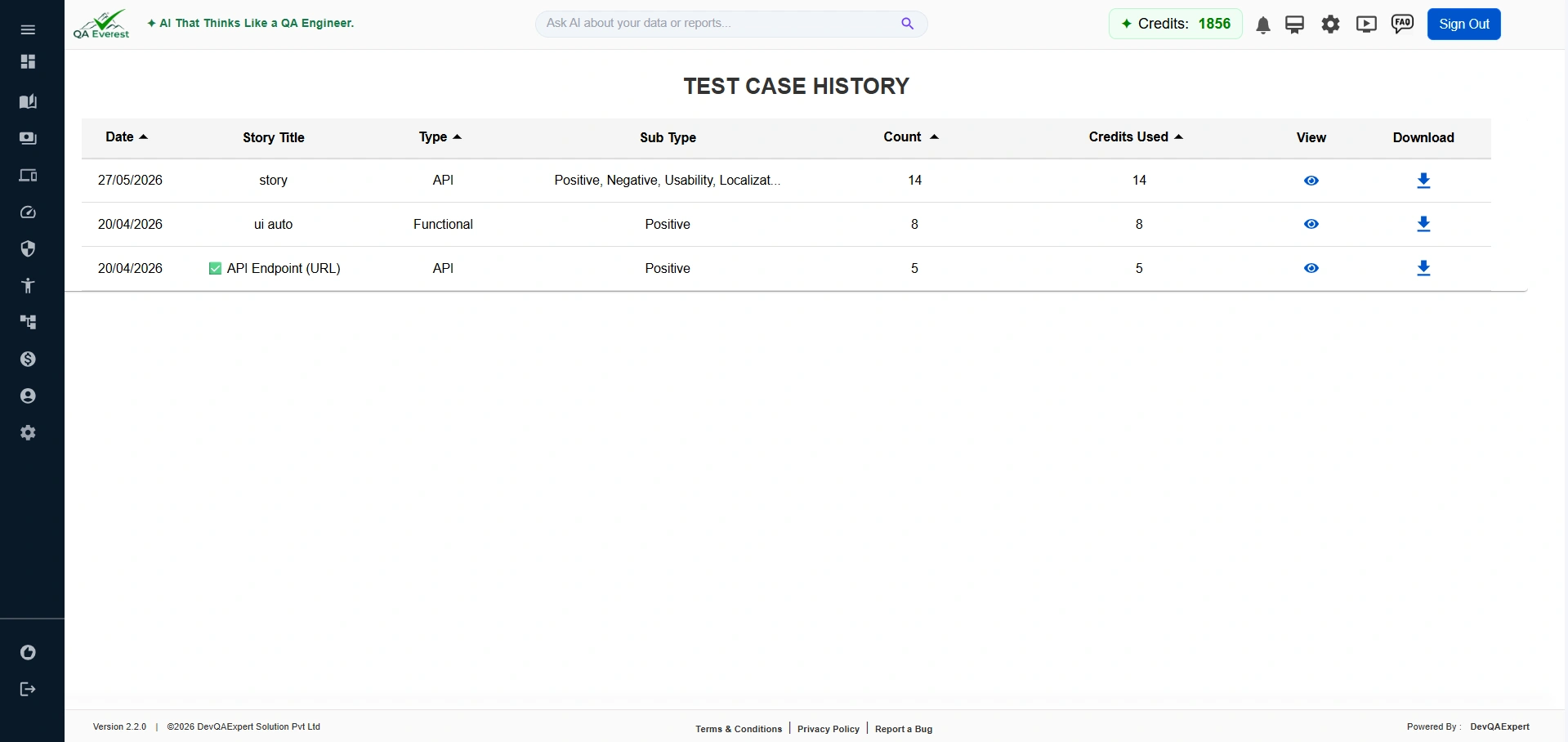
- Here you can view the details of each test case. Additionally, QAEverest offers a download option, allowing you to save a copy of the test cases for your records.
Is my data secure?
QAEverest maintains the security of users’ data and test cases through trusted third-party services as follows:
AI Provider
We use an AI provider to generate test cases based on user stories. The AI provider processes user stories and generates stories to provide the requested service.
Payment Gateway
We use a third-party payment gateway to process payments. Payment information is handled in accordance with the payment gateway's privacy policy and security measures.
Cloud Storage
We store data on third-party cloud storage services, which includes profile information, user stories, and generated stories.
What are the terms and conditions to use QAEverest?
For Terms & condition refer Terms & condition
Can a company/organization use this product?
Yes, for now an organization can use our app by registering as an individual.
What payment provider are we using?
QAEverest uses Razorpay, a well-established payment gateway provider in India known for its secure and reliable transactions. Here's what this information implies:
- Security: Razorpay adheres to strict security standards like PCI compliance, ensuring your payment information is protected during transactions.
- Convenience: Razorpay offers a variety of payment methods, including credit cards, debit cards, net banking, UPI wallets, and more, making it convenient for users to pay.
- Global Reach: While potentially focused on India, Razorpay does facilitate international payments in some cases.
I need to pay in INR, can I pay?
Yes, you can definitely pay in INR!
Here's a breakdown for clarity:
- QAEverest Payment Gateway: Razorpay
- Supported Currencies: USD/INR
I am non-Indian. Can I use the system?
QAEverest being designed for everyone and supporting the English language makes it a good option for you, even though you're non-Indian. Here's a breakdown of the benefits for you:
- Language Support: Since QAEverest supports English, you can comfortably use the interface, provide user stories, and understand the generated test cases.
- Global Applicability: QAEverest's functionalities are likely not restricted to a specific region or industry.
Generated test cases are not good, what should I do?
- Write clear, detailed user stories
- Positive and Negative Scenarios
- Use sample test case provided
- Break down complex features
- Contact support if needed support@qaeverest.com
Please guide me on how I can generate the test cases effectively.
Crafting Powerful User Stories:
- Write user stories that are easy to understand, with concise language and a clear flow of actions.
- Include specific details like login credentials, expected results, and data points relevant to the functionality being tested.
- Include both positive and negative test cases within your user stories. Consider scenarios where login might fail, searches might return no results, or unexpected errors might occur.
- Example (positive): "The user logs in with a valid username and password."
- Example (negative): "The system displays an error message when the user enters an invalid username."
- If you're dealing with intricate functionalities, break them down into smaller, more manageable user stories. This enhances clarity and helps the AI generate more focused test cases.
- Refer to Sample Test Case provided in help icon.
I have a payment issue, to whom do I need to contact?
QAEverest uses Razorpay for payment processing and payment issues are typically handled by the payment gateway, here's how you can get help with your payment issue:
Contact QAEverest Support: Please report to QA Everest's support team at support@qaeverest.com.
The system generates an error, what should I do?
Recommended Steps:
- Try Again Later: Temporary glitches or server overload can sometimes cause errors. Waiting a while and retrying your action might be enough to resolve the issue.
- Check Credit Balance: If the error is related to insufficient credits, you can likely view your credit balance within your QAEverest account.
- Plan Expiry: Ensure your plan hasn't expired. Expired plans might restrict certain functionalities or generate errors when attempting to use them. Renew your plan if necessary.
- Contact Support: If the error persists, contacting QAEverest's support team at support@qaeverest.com
How can I report a bug?
To report a bug, go to https://qaeverest.ai/HomeReportABug and fill in the details. Submit the bug by clicking the Submit button.
How can I view my payment history?
Steps to View Payment History
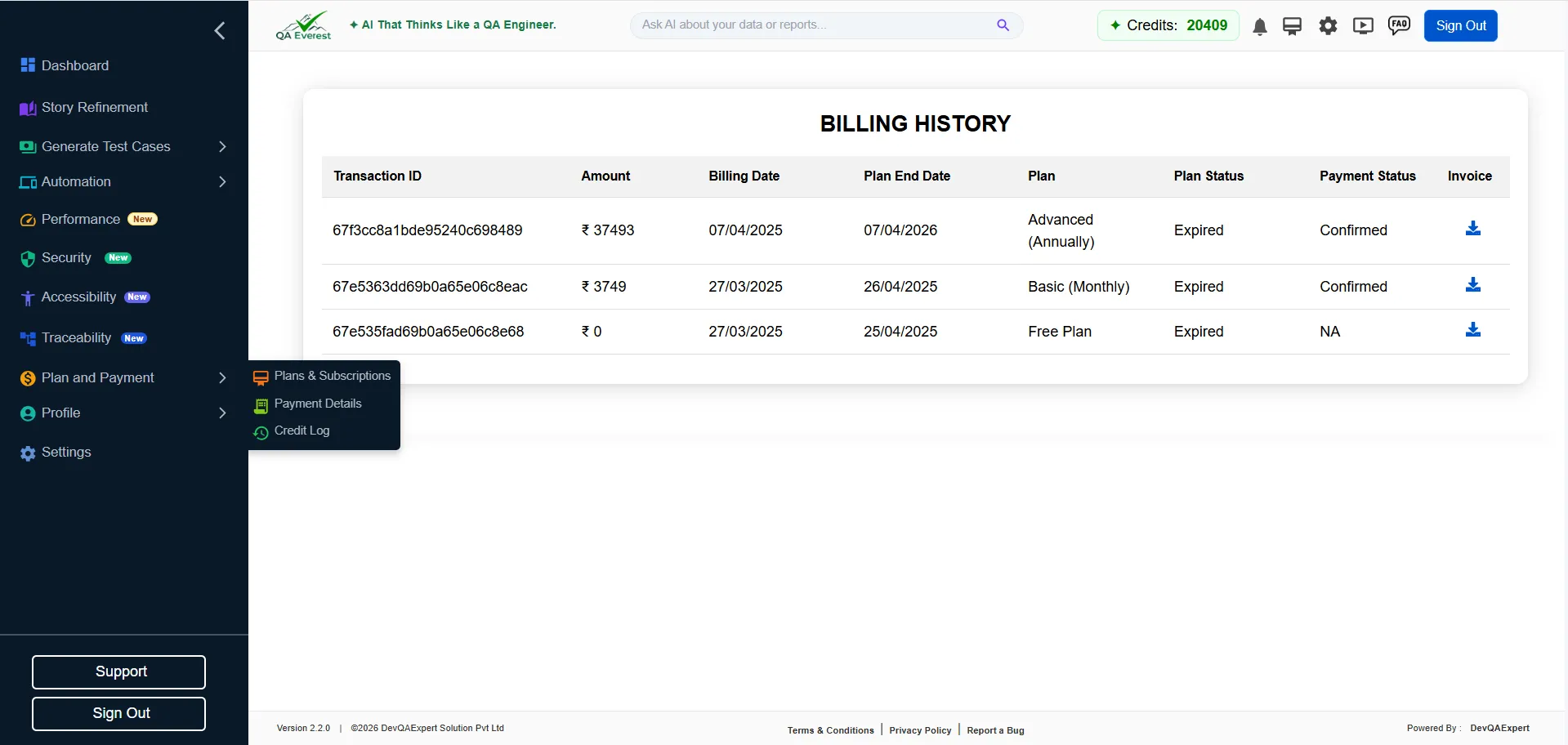
To view your payment history, open a web browser and navigate to: https://qaeverest.ai/billingHistory
- Login: You'll likely need to log in to your QAEverest account to access your payment history
- Billing Section: Once logged in, look for a section "Payment Details"
How can I edit generated test cases?
Editing Generated Test Cases in QAEverest:
- Generate Test Cases: Create your test cases using QA Everest's AI generation.
- Click on Export to download the test cases.
- The testcases are downloaded and this allows you to edit the test cases using familiar spreadsheet software.
Download for Editing:
Why did my account get archived/locked?
- Plan Expiration: Your subscription plan might have expired, and you haven't renewed it yet.
- Inactivity: If you haven't used your account for a long time, QAEverest might archive it to manage their resources.
Your account on QAEverest might be archived for two reasons:
Although archived, you can still access your generated test cases in this mode.
If you want to regain full functionality of your account, here are your options:
- Renew your subscription plan (if applicable).
- Contact QAEverest support for help reactivating your account by emailing support@qaeverest.com
What types of documents can I upload for data extraction?
- Documents (DOCX, PDF)
- Images (JPG, PNG)
- Spreadsheets (XLSX, CSV)
- Presentation Files (PPTX)
QAEverest.ai can extract data from various document formats, including:
Which project management tools does QAEverest.ai integrate with?
Currently, QAEverest.ai seamlessly connects with Jira and ClickUp.
What is the minimum and maximum resolution for the images accepted?
- Minimum resolution: 200x200 pixels
- Maximum resolution: 4000x4000 pixels
What is the maximum file size allowed for uploads to QAEverest.ai?
The maximum file size for uploads to QAEverest.ai is 20MB per file.
How many files can I upload at once?
You can upload a maximum of 5 files at a time.
What should I do if I receive an "Unsupported Format" error?
If you encounter an "Unsupported Format" error, double-check that your file is in a supported format. QAEverest.ai currently supports JPEG, PNG, GIF, PDF, DOC, DOCX, XLS, XLSX, and CSV.
My file is too large. What can I do?
If your file exceeds the 20MB size limit, try compressing it. You can also split the file into smaller parts and upload them separately.
Are there any file types that are not supported by QAEverest.ai?
Currently, QAEverest.ai does not support video or audio files.
Is there a recommended file size for optimal performance?
While the maximum file size is 20MB, it's generally recommended to keep your files as small as possible for faster processing times.
What are the reasons for a QAEverest.ai image upload failure?
- Unsupported Format: Ensure your image is in a supported format (e.g., JPEG, PNG, GIF). If it’s not, convert it to one of these formats before uploading.
- File Size or Resolution: The image must be under 20MB. If the resolution is too high, reduce it before attempting to upload again.
- Network Issues: A slow or unstable internet connection can cause upload failures. Check your connection and try again.
- Browser Compatibility: Make sure you’re using an up-to-date browser. Clearing your cache may also help resolve issues.
- Retry Uploading: If the upload fails, try selecting a different image or re-uploading the same one after checking the above points
How do I upload documents to QAEverest.ai?
Locate the "Upload" or "Drag & Drop" Section within the QAEverest.ai interface. Click to open a file selection dialog. Choose the document file you want to upload (e.g., PDF, DOCX). Ensure that the document is in a supported format for proper processing.
How do I upload an image to QAEverest.ai?
Use the "Upload" button to select an image file from your device. Supported image formats generally include JPEG, PNG, and GIF. Once selected, confirm the upload to send the image to QAEverest.ai.
Is QAEverest.ai capable of extracting and analyzing images embedded in PDF, DOC, and DOCX documents?
QAEverest.ai currently does not support direct extraction of images from attached PDF, DOC, and DOCX files. Upload images separately.
Can I upload a PPT to QAEverest.ai?
QAEverest.ai currently doesn't specify support for PowerPoint files (.PPT). However, convert your PPT file to a supported format like PDF before uploading.
What happens if I provide both user stories and design assets?
The system will combine the information from user stories and design assets to generate even more comprehensive and accurate test cases.
What happens if I only provide user stories?
If you only provide user stories, the system will generate test cases based on the information contained within the user stories.
How many credits are deducted for uploading design assets?
The system deducts 20 credits per uploaded image.
Can I cancel the upload and avoid credit deduction?
Yes, you can cancel the upload process before clicking "Generate Test Cases" to avoid credit deduction.
Can I generate testcases from Jira/ClickUp Id?
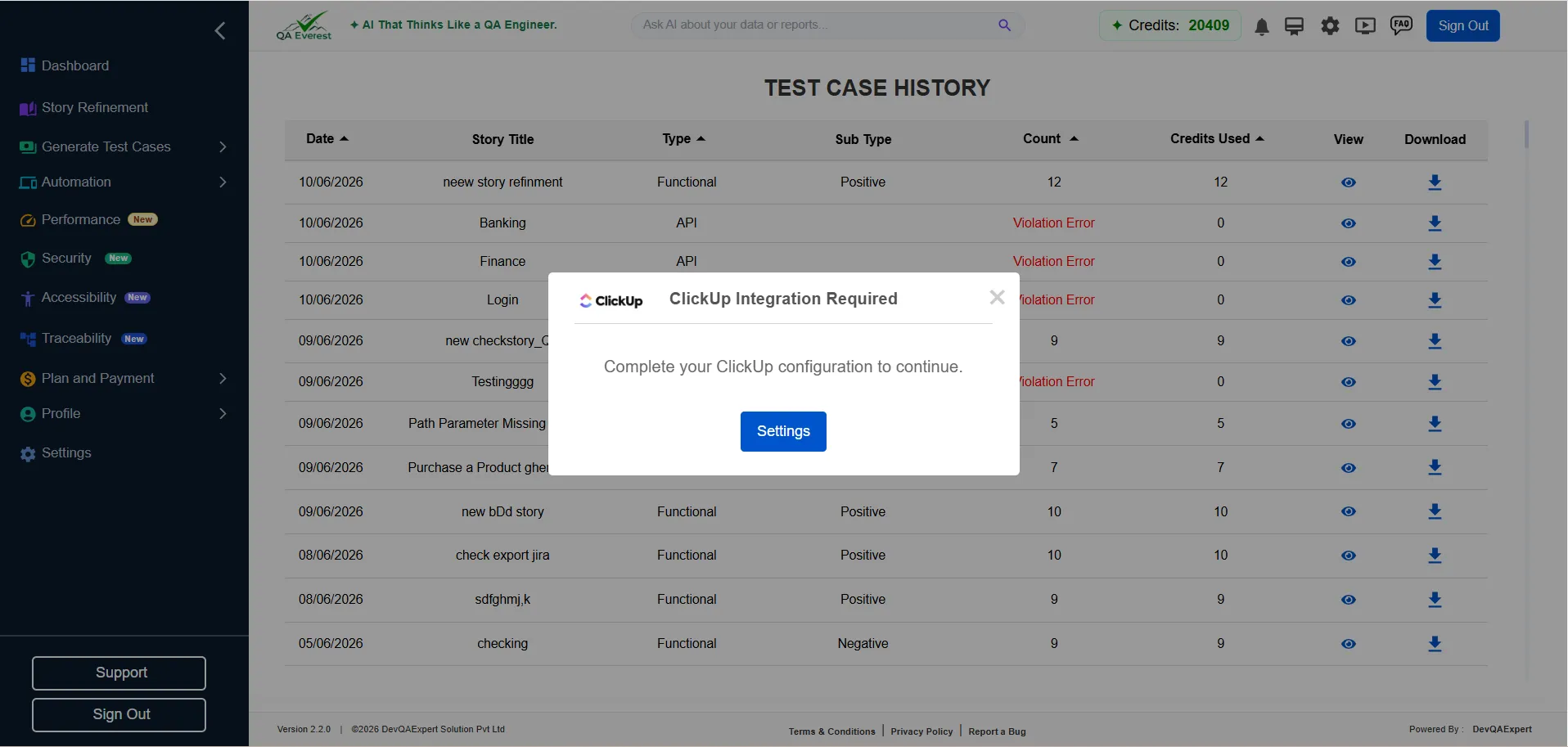
Yes, you can! QAEverest.ai allows you to seamlessly generate test cases directly from Jira or ClickUp IDs by simply entering a valid ID.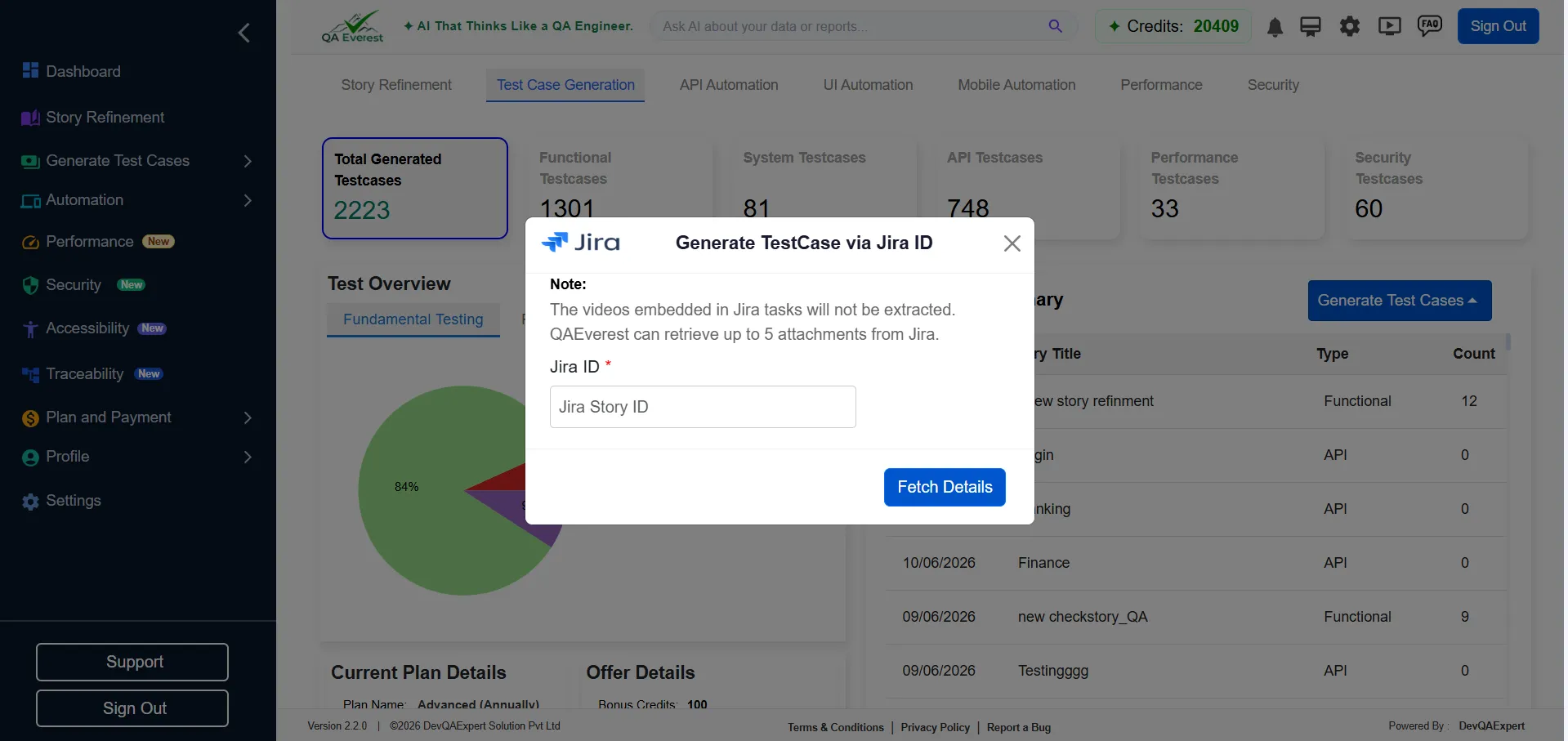
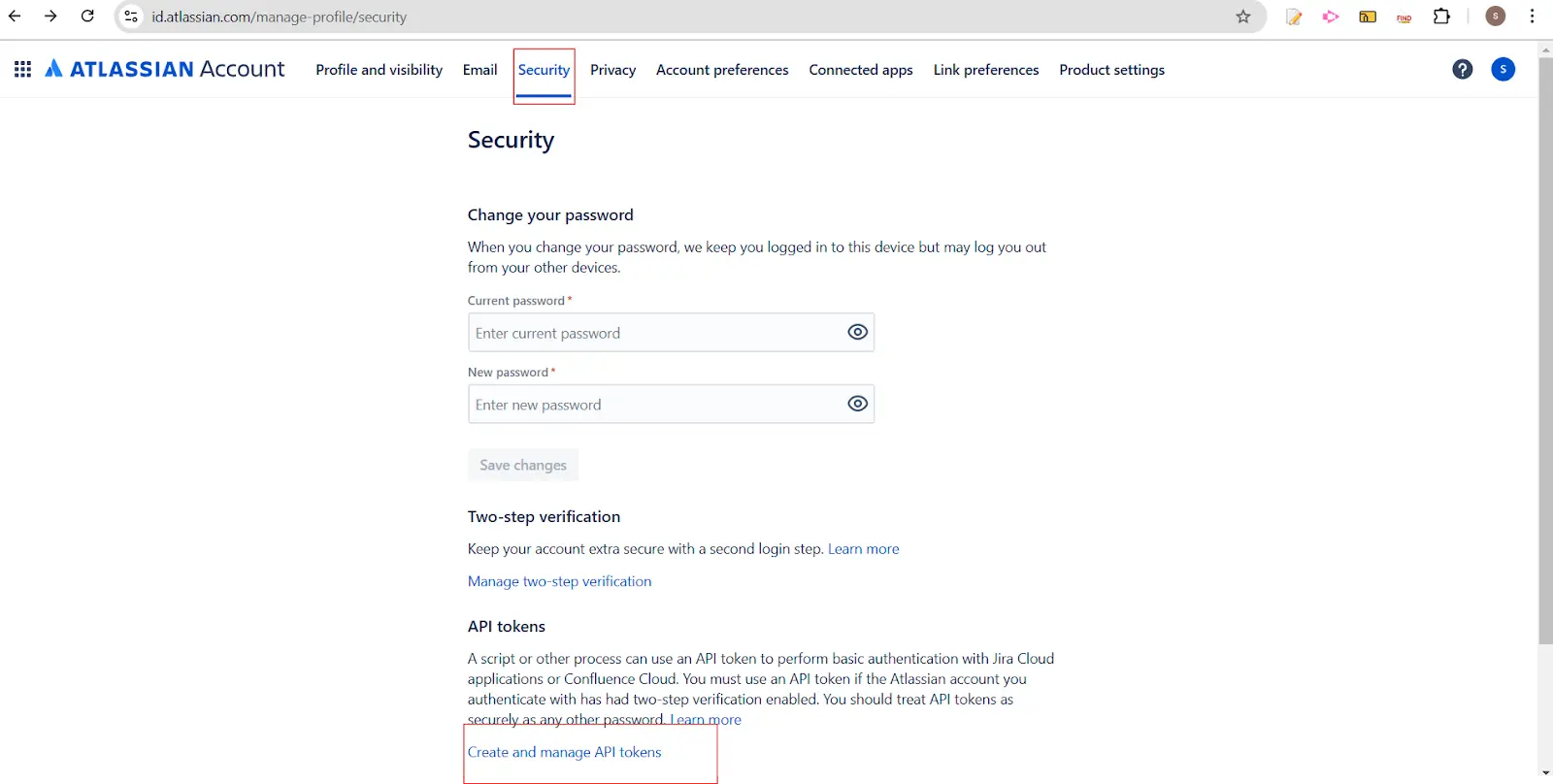
Where can I find the Jira ID API token for my project?
Open Jira Account Settings:
- Click on your profile icon (usually in the top-right corner).
- Select "Account settings" or "Manage account".
Security Settings:
- In the left sidebar or under security options, find "Security" or "Personal API tokens".
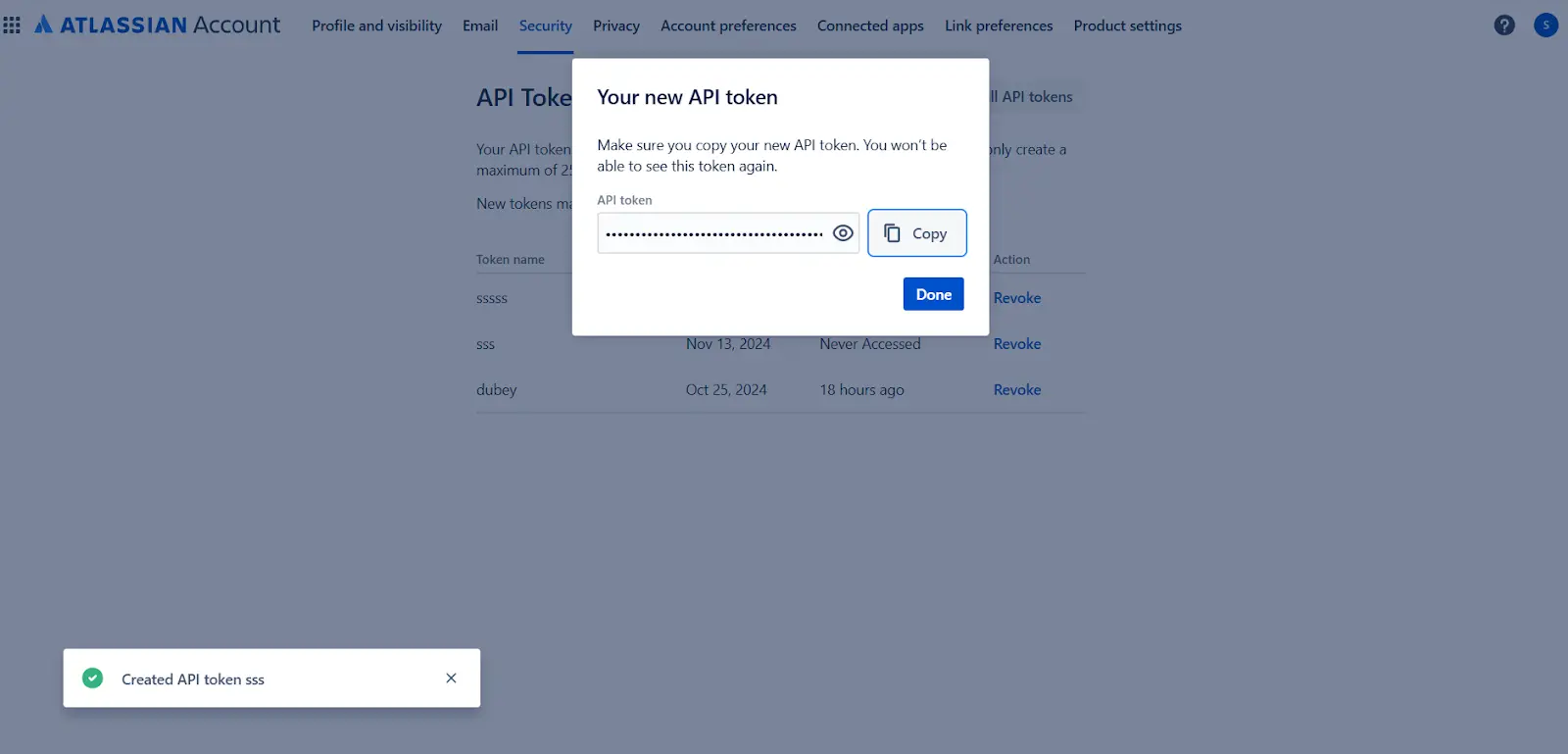
Create a New API Token:
- Click "Create API token".
- Provide a label or name for your token (for example, "Integration for my app").
- Click "Create" and then copy the token.
Store the Token Safely:
- Make sure to store your API token in a secure location. Jira will not show it again.
Use the Token:
- Use the token in your API requests by setting it in the Authorization header.
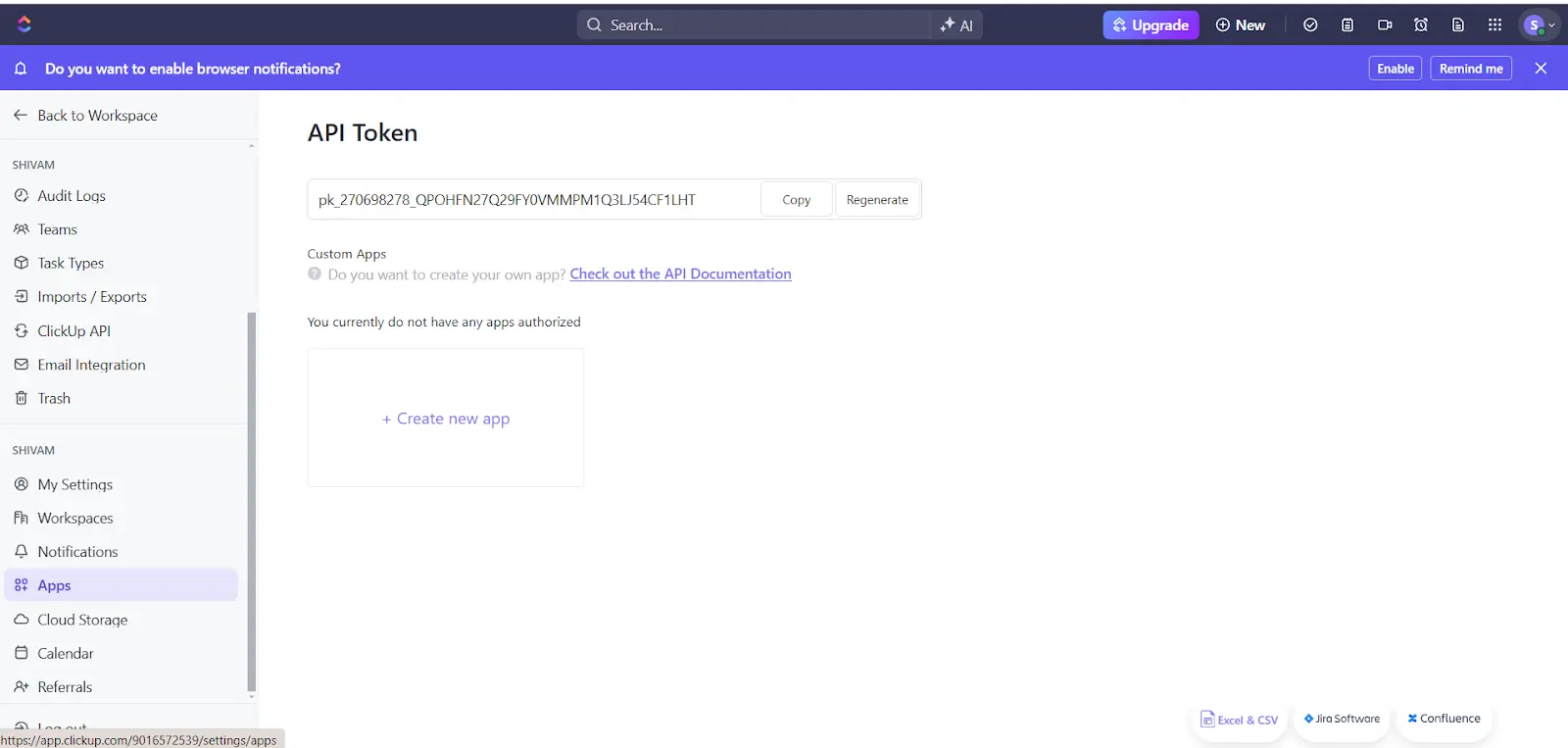
Where can I find the ClickUp API token for my project?
Click on your ClickUp profile → Settings → App
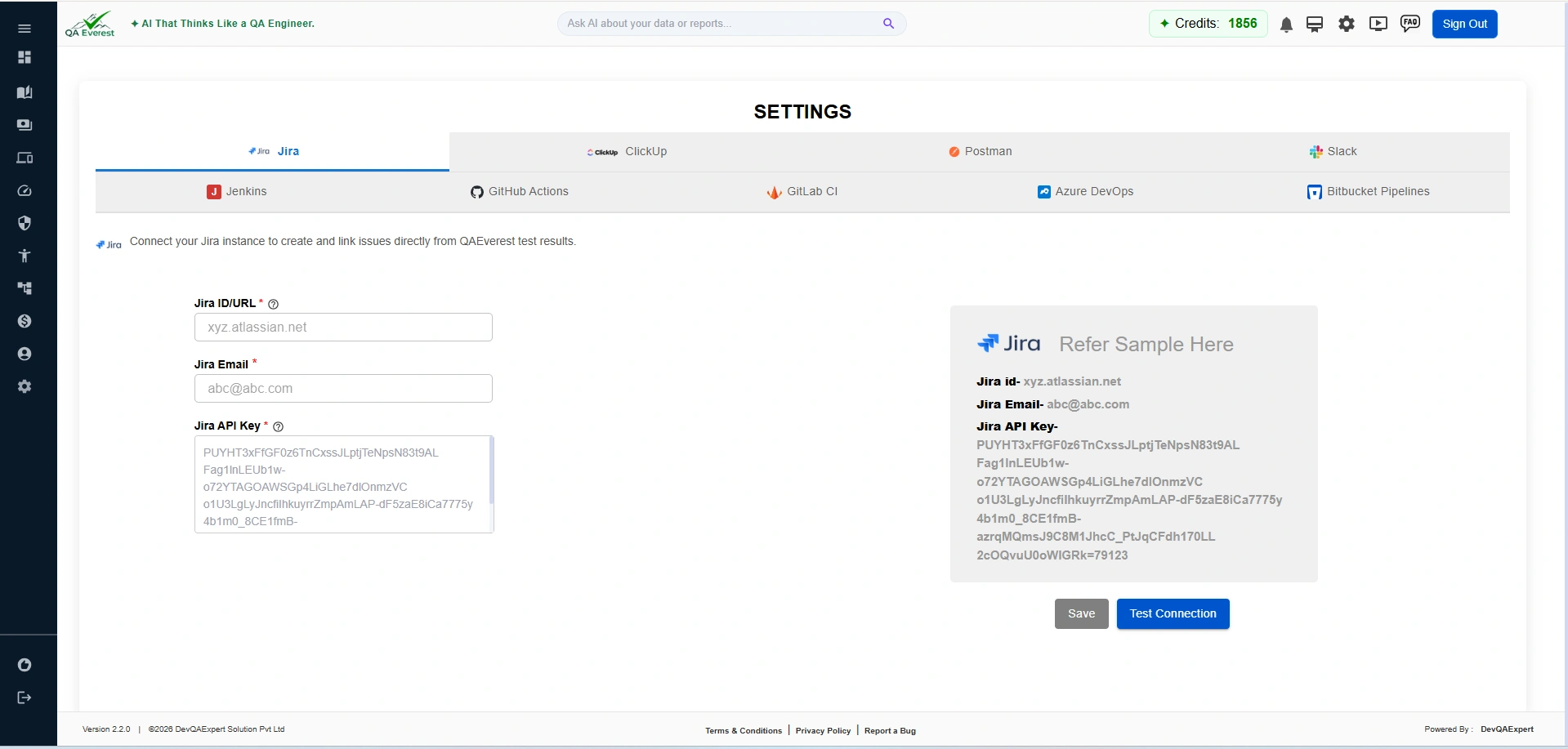
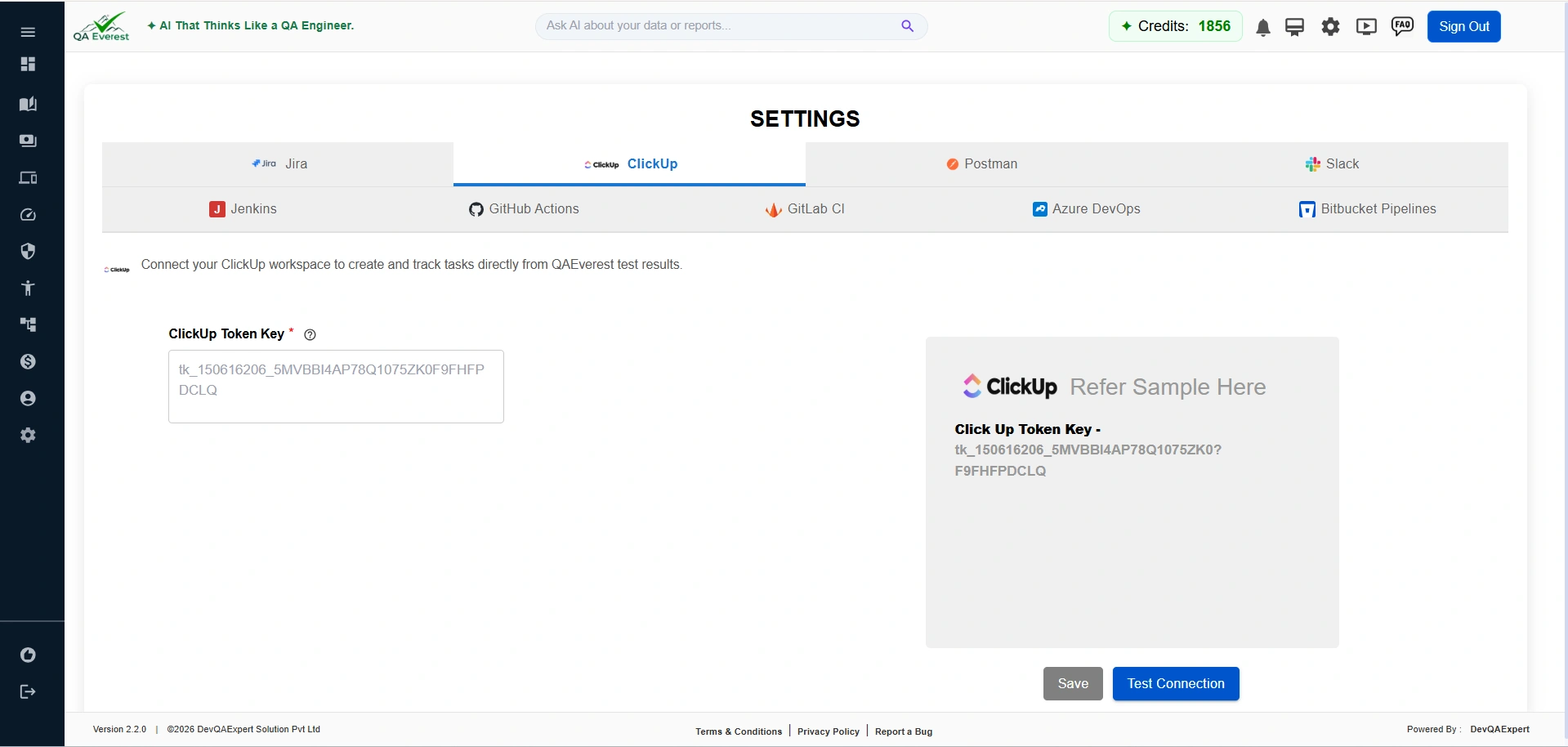
How to set up Jira/ClickUp integration with QAEverest.ai?
- Log in to your QAEverest.ai account.
- Navigate to account settings.
- Click on "Jira Set Up / Click Up Set Up" to begin the integration process.
- Hover and Click on the Jira API Key
What information is fetched from Jira/ClickUp?
The system extracts relevant details such as user stories, descriptions, and attachments associated with the provided ID.
Can I customize the generated test cases?
Yes, you can edit and customize the generated test cases to suit your specific testing needs.
What formats are supported for downloading test cases?
Supports the following formats: Zephyr, TestRail, QTest, QBase, Azure, PractiTest, XLSX, and CSV.
How do I download test cases?
To download test cases, click the "Download Test Cases" button and select your desired format from the dropdown menu.
What are the available options for test case formats?
You can choose between TDD format and BDD format for your test cases.
How can I view attached files for a test case?
To view attached files, go to the test case history page and click the "Attachments" button. A list of attached files will be displayed.
What types of files can I attach to test cases?
You can attach common file types relevant to software testing, such as PDF, DOC, XLSX, CSV, and images.
How can I download an attached file?
To download an attached file, click on the file name in the list. The file will be downloaded to your device for offline reference or further analysis.
What happens if my Jira/ClickUp task has more than 10 attachments?
QAEverest.ai integrates with Jira/ClickUp to help you generate test cases. However, if your Jira/ClickUp task has more than 10 attachments, QAEverest.ai will prioritize and fetch only the top 5 attachments for analysis.
Story Refinement
What is Story Refinement?
Story Refinement is an AI-powered feature that transforms raw user stories into well-structured, testable requirements. It asks clarifying questions, detects gaps in acceptance criteria, and produces a quality-scored refined story you can immediately use for test case generation.
How do I access Story Refinement?
Click Story Refinement in the left sidebar. The page lists your previously refined stories. Click "+ New Story" to start the 3-step refinement wizard (Story Details → Questionnaire → Refined Story).
Can I generate test cases directly from a refined story?
Yes. After saving a refined story, click "Generate Test Cases"from the story detail view. The refined story's acceptance criteria are used as the input, producing more accurate and comprehensive test cases than a raw user story alone.
Does refining a story consume credits?
Yes. Each refinement uses 1 credit, the same as generating test cases from one user story. For more detailed questions about Story Refinement, see the "Story Creation & Refinement" FAQ tab.
Generate Test Cases by Postman
Can I generate test cases from a Postman collection?
Yes. QAEverest can analyse a Postman collection and automatically generate API test cases from it. Navigate to Generate Test Cases → By Postman in the sidebar to get started.
How do I provide my Postman collection?
There are two ways:
- Upload a file — Export your collection from Postman as a JSON file and upload it directly.
- Collection ID — Enter your Postman Collection ID. For organisation users, an admin must configure the Postman API key under integration settings first.
Where do I find my Postman Collection ID?
In Postman, open the collection, click the three-dot menu (…), and select Share. The Collection ID is shown in the share link or in the collection info panel on the right-hand side.
Generate Test Cases by Swagger / OpenAPI
Can I generate test cases from a Swagger or OpenAPI specification?
Yes. QAEverest reads Swagger/OpenAPI specs (JSON or YAML) and generates comprehensive API test cases covering each endpoint, method, and schema. Navigate to Generate Test Cases → By Swagger in the sidebar.
How do I provide a Swagger specification?
Two options are available:
- Upload a file — Upload a .json or .yaml OpenAPI spec from your device.
- Swagger URL — Paste the public URL of your Swagger definition (e.g.,
https://api.example.com/swagger.json). The URL must be publicly accessible.
Which OpenAPI versions are supported?
QAEverest supports OpenAPI 2.0 (Swagger) and OpenAPI 3.x specifications in both JSON and YAML formats.
Generate Test Cases by Repository (import an existing automation suite)
Can I bring my existing automation scripts into QAEverest?
Yes. Navigate to Generate Test Cases → By Repository, connect a GitHub, GitLab or Bitbucket repository (read-only), pick a branch and an optional folder, and QAEverest scans it for automation test scripts — Playwright, Cypress, Selenium, WebdriverIO, pytest, JUnit/TestNG, NUnit, RSpec, Go, PHPUnit, Cucumber and Robot Framework. It reads each test together with the page objects and helpers it imports and extracts plain-language QAEverest test cases (steps, expected results, test data, priority, tags) that you review and edit before anything is automated.
What does a repository import cost?
- Connecting, listing branches and the preflight analysis are free. Preflight shows the frameworks and folders detected, an estimated number of test cases and the estimated credits against your balance before you start.
- Extraction is billed per test case extracted (1 credit each by default, configurable by the platform admin), deducted file by file as results arrive. If your balance runs out mid-scan the remaining files are skipped — you only pay for what was produced and can re-run later for the rest.
- Reviewing, editing and "Proceed to Automation" are free. Running the resulting suites is billed as normal UI / API automation execution.
- Source code mode is billed 1 credit per module analysed for the feature inventory plus 1 credit per test case generated (defaults, configurable by the platform admin); preflight, picking features and review are free.
Every import appears in your Credit Log as Repository Import with the repository, branch and number of test cases.
Can QAEverest generate test cases from my application's source code, not just import existing tests?
Yes. On Generate Test Cases → By Repository switch the mode to Source code, connect the repository and branch (a path filter such assrc/ keeps it focused) and the free preflight shows the stack and files it will read. QAEverest then builds a feature inventory — the testable features, their behaviours and the files that implement them, ranked by how much they matter — and you tick the features you want, optionally paste a story or requirement (used as the source of truth wherever the code disagrees with it) and click Generate. Each test case carries a confidence and the assumptions the model made, so check them: an expected result read off the code describes what the code does, not what it should do. Then Proceed to Automation as usual, one suite per feature. Cost is 1 credit per module analysed for the inventory plus 1 credit per test case generated (defaults, admin-tunable); preflight, feature selection and review are free.
Where do imported test cases go?
After review, Proceed to Automation files the accepted test cases into modules that mirror your repository folders (root = owner/repo), one suite per test file, in UI, API or Mobile Automation depending on the kind of test. Each file also gets a record in Test Case History. Test cases the extractor was unsure about are flagged with a low confidence score and any helper calls it could not follow, so you can fix or reject them before automating.
Requirements Traceability (RTM)
What is the Requirements Traceability Matrix (RTM)?
The Requirements Traceability Matrix (RTM) maps each requirement to the test cases that verify it. QAEverest automatically links your stored user stories or Jira/refined stories to generated test cases so you can see which requirements are covered, which are not, and whether linked tests are passing or failing.
How do I access the Traceability feature?
Click Traceability in the left sidebar (marked with a "New" badge). The page displays coverage KPIs, the traceability matrix table, and an AI-powered gap analysis card.
What is Coverage Gap Analysis?
Coverage Gap Analysis is an AI-generated report that highlights requirements with no linked test cases (gaps) and suggests which areas need additional test coverage. It appears as a card on the Traceability page and can be refreshed on demand.
What information does the RTM table show?
For each requirement the table shows:
- Requirement title and source (Jira, Refined Story, or User Story)
- Risk level (B0 Critical, B1 High, B2 Medium, B3 Low)
- Coverage status (Covered / Uncovered)
- Linked test run status (Passing / Failing / Not run)
- Number of linked test cases
Does Traceability work with Organisation projects?
Yes. If you are part of an organisation you can switch between your personal scope and organisation projects using the project selector on the Traceability page. Only projects you have access to will appear in the dropdown.