UI Automation Setup Guide — Complete Reference
Sample test cases, glossary, and best practices to ensure your UI automation runs successfully every time.
Sample Test Cases
Copy these examples directly into the Create Suite editor. Replace URLs, field names, and values with your application's specifics.
A standard end-to-end login test. Uses fill, click, and assert actions.
Run Settings — Browser, Parallel Runs and Localization
These dropdowns sit in the toolbar of the Edit Suite page for UI Automation suites. Each one is saved on the suite as soon as you change it, and is used by manual runs, schedules and CI/CD triggers alike.
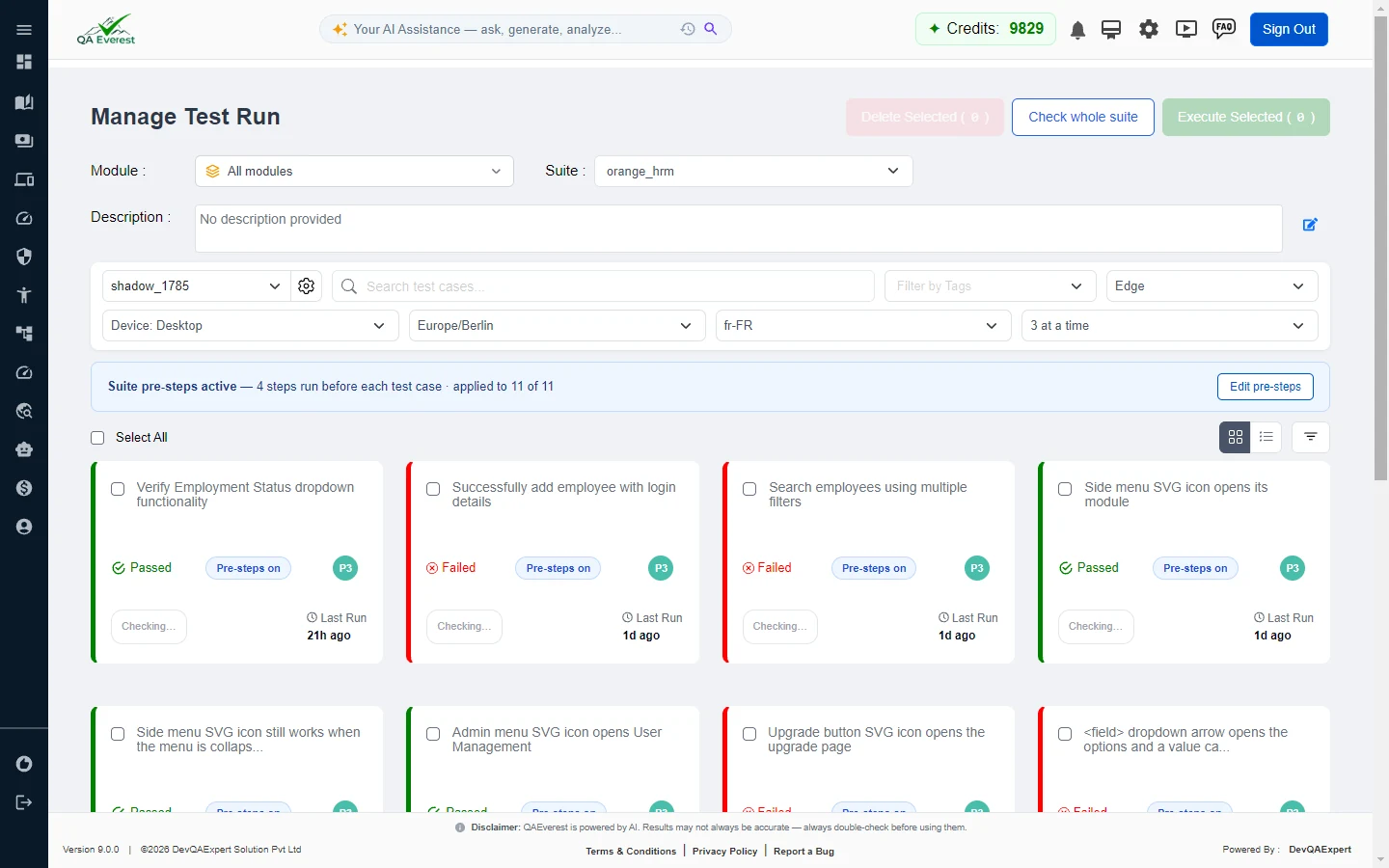
The Parallel dropdown sets how many test cases run at once: Parallel: Off, 2 at a time, 3 at a time or 4 at a time. Each lane gets its own browser, so test cases do not share pages or cookies while they run.

- Logins run first. Test cases that log in run before the rest, and every other test case starts from the saved session of the login before it in the suite.
- While it runs the progress overlay shows "Running 3 test cases at a time · 4 of 12 done".
- In Suite History a parallel run carries an "N at a time" badge, and its Duration is the real elapsed time of the run.
- Credits are unchanged. A run is charged per test case executed, so running four at a time costs the same as running them one by one.
- Busy server? A run takes the lanes that are free and runs narrower rather than waiting in a queue.
Parallel: Off or give each test case its own data. Parallel runs apply to UI Automation suites; API and Mobile suites run one test case at a time.Shadow DOM, SVG and Icon Elements
Web components and icon systems hide elements from ordinary selectors. You still write the step with the visible label — the engine does the rest.
Glossary
Key terms used throughout the UI Automation system.
BDDBehavior-Driven Development. Tests written in natural language (Given / When / Then) so both technical and non-technical stakeholders can read them.
GherkinThe language used for BDD test cases. Keywords: Feature, Scenario, Given, When, Then, And, But.
TDD FormatTest-Driven Development style input — numbered steps with an Expected Result section. Detected automatically from Steps: or Test Case ID: headers.
LocatorA selector that uniquely identifies a UI element on the page. Can be an XPath expression or CSS selector. The AI resolves these automatically.
XPathXML Path Language — an expression used to locate elements in the page DOM. Example: //button[text()='Sign In'].
CSS SelectorA pattern that matches elements using CSS syntax. Example: button.btn-primary. Faster than XPath in most browsers.
data-testidA stable HTML attribute added by developers specifically for test automation. Example: data-testid="login-button". The AI prioritises these.
Stage D (DOM-first)The first stage of locator resolution — it searches the live DOM semantically (label, placeholder, aria, visible text) before using AI vision. Free, fast, and always runs first.
Shadow DOMA private DOM tree attached to a web component. Ordinary selectors and XPath stop at its boundary. Open roots are fully supported; controls inside closed roots cannot be targeted by name, only by a coordinate click inside the host or the keyboard.
Chained LocatorThe locator used for a shadow DOM element — one CSS segment per shadow boundary, joined with >>. Example: #shell >> #prefs >> input.
SVG LocatorSVG elements live in their own XML namespace, so //svg matches nothing. The engine writes //*[name()='svg'] instead, and resolves an icon click to the button or link that hosts the icon.
Script / Mock StepStep kinds chosen with the editor's toggle. A Script step runs JavaScript in the page; a Mock step answers matching network requests with a response you define.
JIT LocatorJust-In-Time locator resolution. The AI resolves each element's locator immediately before that step executes, ensuring it is resolved against the correct live page.
Self-HealingWhen a step fails because the locator is stale, Agent 6 automatically re-resolves the element and retries the step. Healed locators are cached for future runs.
Locator CacheA persistent store of previously resolved (and validated) locators. Cache hits skip AI calls, making re-runs faster and cheaper.
Compound LoginA special action that fills username, password, and clicks submit in a single step. Triggered by phrases like "log in with email X and password Y".
Assert / VerifyA step that checks a condition without interacting with the page. Example: "I should see 'Welcome'". Does NOT click or type anything.
Base URLThe root URL of the application under test (e.g. https://staging.your-app.com). Set in Environment Settings before running suites.
Test SuiteA named collection of test cases grouped for a specific feature or flow. Suites are run against an environment and produce a pass/fail report.
Smoke TestA minimal set of critical-path tests that verify the app is basically functional. Run after every deployment to catch major regressions fast.
Parallel LanesHow many test cases of a UI suite run at once (2, 3 or 4 at a time). Each lane has its own browser. Set with the Parallel dropdown on Edit Suite.
EmulationSuite-level settings that make the browser report a different device, timezone or locale to the page. Applied when each test case's browser starts.
LocaleA language-and-region tag such as fr-FR or ja-JP. It sets navigator.language and the Accept-Language header, which is what most sites use to pick a translation.
Localization TestingChecking that the app shows the right language, formats and layout for a region. Done by running a suite with a chosen locale and timezone and asserting the localized text.
Best Practices
Follow these guidelines to maximise run stability and minimise failures.
Writing Steps
Each step should perform exactly one browser action. Combining actions in a single step confuses the AI classifier and produces unreliable results.
When I enter my email, password and click loginWhen I enter "user@test.com" in the "Email" field
And I enter "pass123" in the "Password" field
And I click the "Login" buttonEnvironment Setup
Before You Run
App-Side Improvements
Debugging Failures