Generate Comprehensive Test Cases in Seconds with AI & our proprietary algorithm
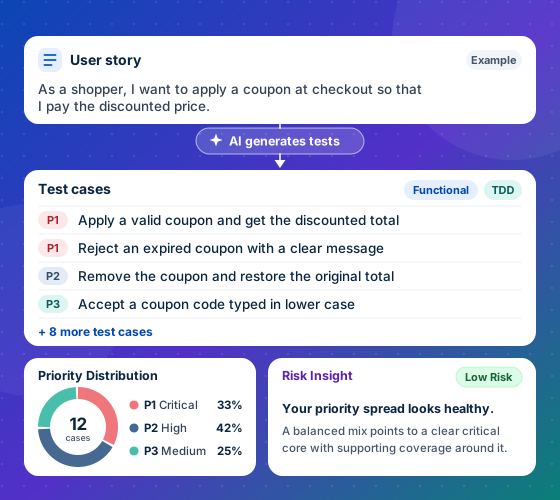
Turn a user story, document, Figma file, API spec or browser recording into test cases, ready to export to Jira, TestRail, Azure and more. Every generation shows a priority breakdown and a risk insight, so you can see what to test first.
- Functional
- System
- API
- Integration
- Database
- Security
- Performance
Seamlessly integrates with the tools your team already uses


Discover the powerful capabilities of QAEverest.ai

Effortless Data Extraction
Upload Files, Images, Figma, docs, csv, xlsx
Upload files, images, Figma designs, docs, or spreadsheets, and let QAEverest.ai's AI turn them into a structured, refinement-ready user story — with no manual data entry.

Flexible Format Choice
TestRail, QTest, Qase, Azure, PractiTest, XLSX, and CSV
Export your test cases in various formats to seamlessly integrate with your existing testing infrastructure. QAEverest.ai supports popular formats like Zephyr, TestRail, QTest, Qase, Azure, PractiTest, XLSX, and CSV.

Project Management Integration
Jira & ClickUp
No need to disrupt your existing workflow. QAEverest.ai integrates seamlessly with your preferred project management tools like Jira and ClickUp. Generate test cases directly from tasks and keep everything centralized for maximum efficiency.

Test Case Selection
Choose the Right Test Cases
We understand that every team has its own preferences. Choose between creating test cases in traditional format (TDD) or leveraging the collaborative power of Gherkin (BDD) format. QAEverest.ai provides flexibility to suit your team's needs.

Swagger / Postman Test Generation
Generate from API specs & collections
Import a Swagger/OpenAPI specification or a Postman collection and QAEverest.ai automatically generates API test cases covering endpoints, parameters, payloads, and expected responses.

Figma URL Test Generation
Generate from a Figma design link
Paste a Figma design URL and QAEverest.ai analyzes the screens and components to generate UI test cases instantly — no manual specification writing required.
How It Works
From raw requirement to automated execution — five steps.
- 1
Upload or Connect
Drop in a user story, document, image, CSV or XLSX, paste a Figma link, pull a Jira or ClickUp story, import a Postman collection or Swagger / OpenAPI spec, or upload a browser recording — or connect a Git repository to import the automation scripts you already have. Our AI extracts the relevant details automatically.
- 2
Questionnaire
Answer any questions the AI has about gaps in your story, so it can tailor the test cases to your requirements.
- 3
AI Generates
Pick your testing type and TDD or BDD format, and add Pairwise when a feature has many option combinations. AI builds comprehensive test cases in seconds.
- 4
Export
Send test cases straight to Jira, Zephyr, TestRail, QTest, Qase, Azure or PractiTest, or download XLSX or CSV — no copy-paste required.
- 5
Proceed to Automation
Take Functional and System test cases into Web UI Automation and API test cases into API Automation. Proceed to Automation creates the suite; pick an environment, then execute on demand or trigger runs from your CI/CD pipeline.


Your starting point
Start From What You Already Have
Seven ways in, all under Generate Test Cases: a story, a ticket, an API collection, a spec, a repository or a recording of the flow.
By User Story
Story, document, image, Figma, CSV or XLSX
Type or paste a story, or upload a file and the AI drafts the story from it. Then pick the testing type and TDD or BDD format.
See how it works →By Jira
A Jira story ID
Enter the ID and the story's summary, description and up to 5 attachments are pulled in for you. Connect Jira once in Settings.
See how it works →By ClickUp
A ClickUp story ID
Enter the ID and the task's name, description and up to 5 attachments are pulled in for you. Connect ClickUp once in Settings.
See how it works →By Postman
Collection .json or Collection ID
Upload an exported collection, or enter its ID to fetch it with your Postman API key. Every request, with its method and URL, is read into the story, ready for API test cases.
See how it works →By Swagger
Swagger 2.0 or OpenAPI 3.x, file or URL
Upload a .json, .yaml or .yml spec, or paste its public URL. Every endpoint and its summary is read into the story, ready for API test cases.
See how it works →By Repository
GitHub, GitLab or Bitbucket
Turn the automation scripts you already maintain into QAEverest test cases, or let Source code mode read the application code.
See how it works →By Recording
A FindMyLocator browser recording
Click through the flow with the FindMyLocator Chrome extension. Every click, typed value and selection becomes a plain-English step, and each recording becomes a UI test case in your suite. Importing is free.
See how it works →By Repository
Already Have Automation? Bring It With You.
Generate Test Cases → By Repository reads the automation scripts you already maintain and turns them into editable, self-healing QAEverest test cases — no rewrite, no copy-paste, and you review everything before it runs. No scripts yet? Switch to Source code mode and QAEverest reads the application code, builds a feature inventory and designs the test cases for the features you pick.
- Playwright
- Cypress
- Selenium
- WebdriverIO
- pytest
- JUnit / TestNG
- NUnit
- RSpec
- Cucumber
- Robot
Connect, don't upload
Point QAEverest at a GitHub, GitLab or Bitbucket repository (read-only), pick a branch and a folder. A free preflight shows the frameworks, folders and estimated test cases before you spend a credit.
Page objects flattened
Each test is read together with the page objects and helpers it imports, so the extracted steps are plain English — "Click the Sign in button" — not class and method names.
Review before anything runs
Every test case carries a confidence score, the source lines it came from and any helper call the AI could not follow. Edit, accept or reject — one by one or in bulk.
Folders mirror your repo
Proceed to Automation files the accepted cases into modules that match your repository directories, one suite per file, straight into UI, API or Mobile Automation.
Preflight and review are free. Extraction is billed per test case extracted, as each file finishes, so rejecting a case later does not refund it.
Import your suite — start freeEvery Type of Testing, Covered
Functional Testing
- One-Click Test Case Generation
- Maximum Coverage
- Download Multiple Test cases in Excel Format
- Covers Positive, Negative, Boundary, Usability, Localization, Internationalization, Recovery and Pairwise.

Fewer test cases
Pairwise Testing: Every Pair Covered, Not Every Combination
When a feature has several inputs with several options each, testing every combination stops being practical. Pairwise covers every pair of options in a fraction of the test cases.
Every pair, covered
Every pair of option values, across any two inputs, appears in at least one test case. A combination engine picks the rows, so the coverage is exact, and the AI writes one set of steps that each row fills in.
A fraction of the test cases
Three browsers, two operating systems and three payment methods make 15 allowed combinations. Pairwise covers every pair in 9 test cases.
Your rules, respected
Write "Safari is not available on Windows" in the story. The AI reads the rule and the engine keeps that pair out.
Opt in when you need it
Tick Pairwise under Includes for Functional, System or API test cases, from a user story, Jira, ClickUp, Postman or Swagger. List each input and its options in the story.
Keep test cases current
Story Changed? Update the Test Cases You Already Have
When a feature's story changes, generating a second set means comparing two lists by hand. QAEverest updates the test cases the change touches, keeps the others and adds what is missing, all in the same record.
Pick the record, change the story
Start from the Generate page, a row in Test Case History or the results page. The form fills in from the record, and you change the story to what it says now.
Review every change
Each test case is marked New, Changed, Unchanged or Possibly obsolete. A changed one shows Now and Updated side by side. Accept or reject them one by one or in bulk; a case the update dropped stays unless you remove it.
Earlier versions kept
Saving writes to the same record and keeps the test cases and story it had before as a version. Restore any version, and the restore can be undone too.
Automated tests flagged
Automated tests built from a case that changed or was removed are flagged for you to check and mark reviewed. Nothing in them is rewritten, and their link follows a renamed case.
Generating the update uses credits like any generation. Reviewing, saving and restoring use none.
Stay organized
Folders That Keep a Feature's Test Cases Together
File each set of generated test cases in a folder, so a long Test Case History stays easy to browse. The same folders hold the feature's stories and automation suites.
Choose a folder as you generate
Pick one under Save in folder on the By User Story form, or type a name to create it. Move to… in Test Case History files any record later, wherever it was generated from.
Nest folders inside folders
Build a path such as Checkout › Coupons. Selecting a folder shows everything filed beneath it, so a whole feature or just one part of it is a click away.
One tree for the whole feature
Stories, generated test cases and UI, API and Mobile suites file into the same folders. Generate from a saved story and its folder is already chosen; Proceed to Automation puts the suite in the test cases' folder, unless a project's suite would land in a personal one.
Project folders and personal ones
With a project active, your personal folders are listed beside the project's and marked, so it's clear which ones the team shares.
Try it now
See It In Action
Paste a user story below and preview the kind of test cases QAEverest generates.